
Ready for your next take.
From executive updates to training videos, keep your message clear and your eyes near the lens. Film yourself, or let your crew run the Prompter from a second device.
Coming to the App Store. $99.99 lifetime, or try a subscription free for 7 days.
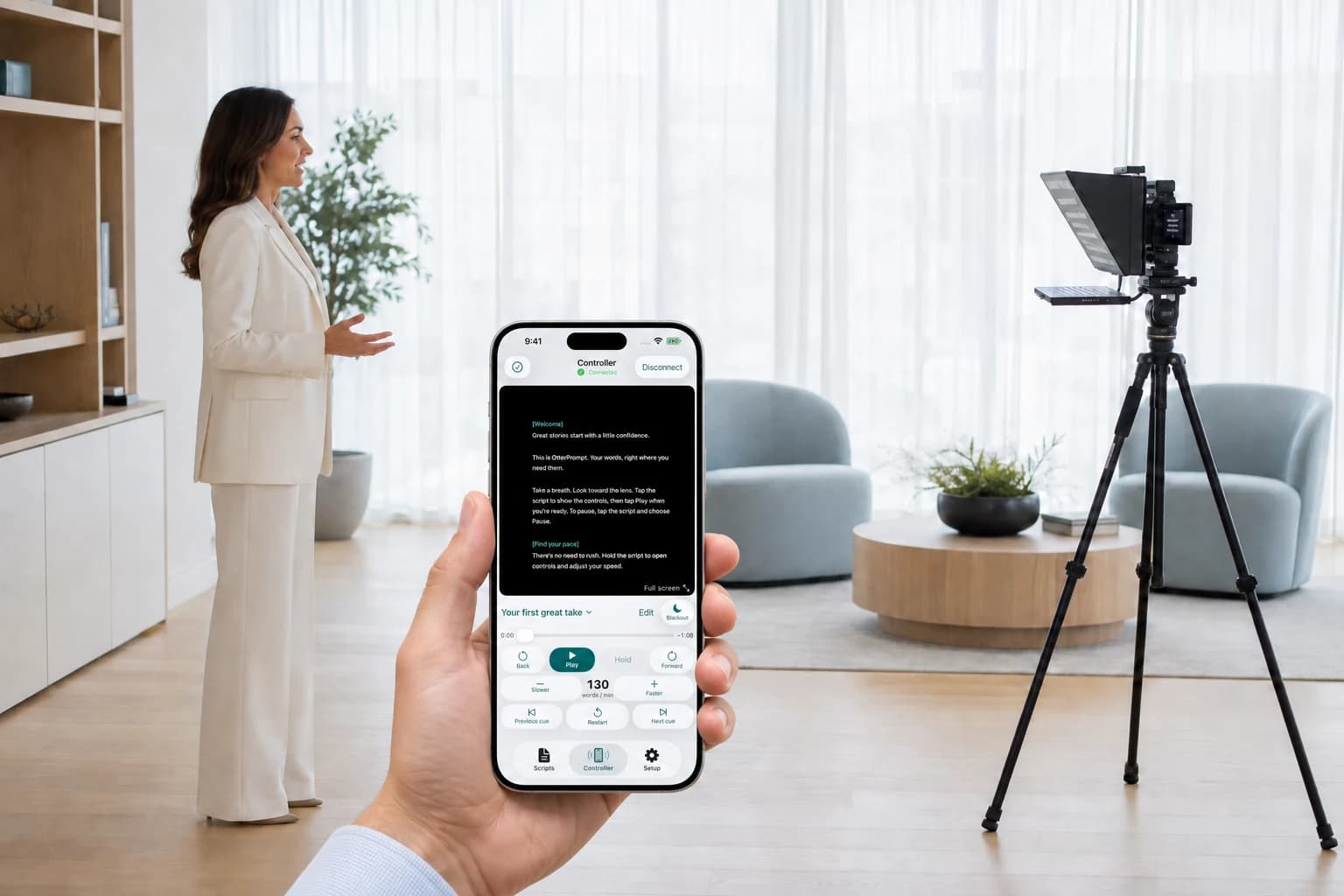
Make your expertise
the focus.
Share an insight, explain your process, or record an update for your team. Selfie mode keeps a few lines of your script close to the front camera, so you can focus on your delivery.
Record vertical social videos or turn your device for a horizontal take. Pause the script while you keep filming. Then review, share, or save to Photos. Your words stay off the finished video.
Get started with Selfie mode
A little less setup.
A lot more story.
Write your words. Find your pace. Give your next take your full attention.
Actual OtterPrompt screens. Select a screenshot to see it full size.
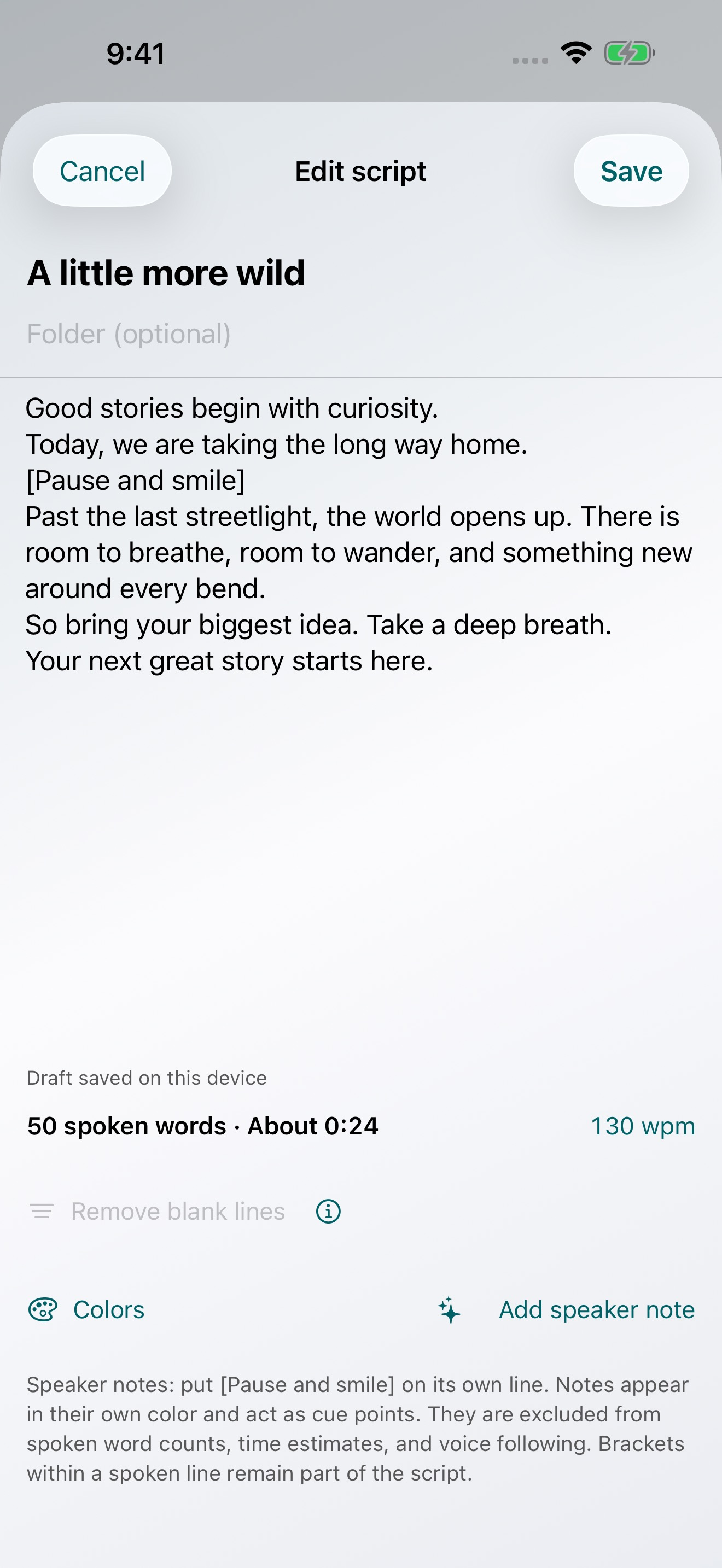
Make the words yours.
Clean up blank lines, add speaker notes, and see how long your script will take to read.
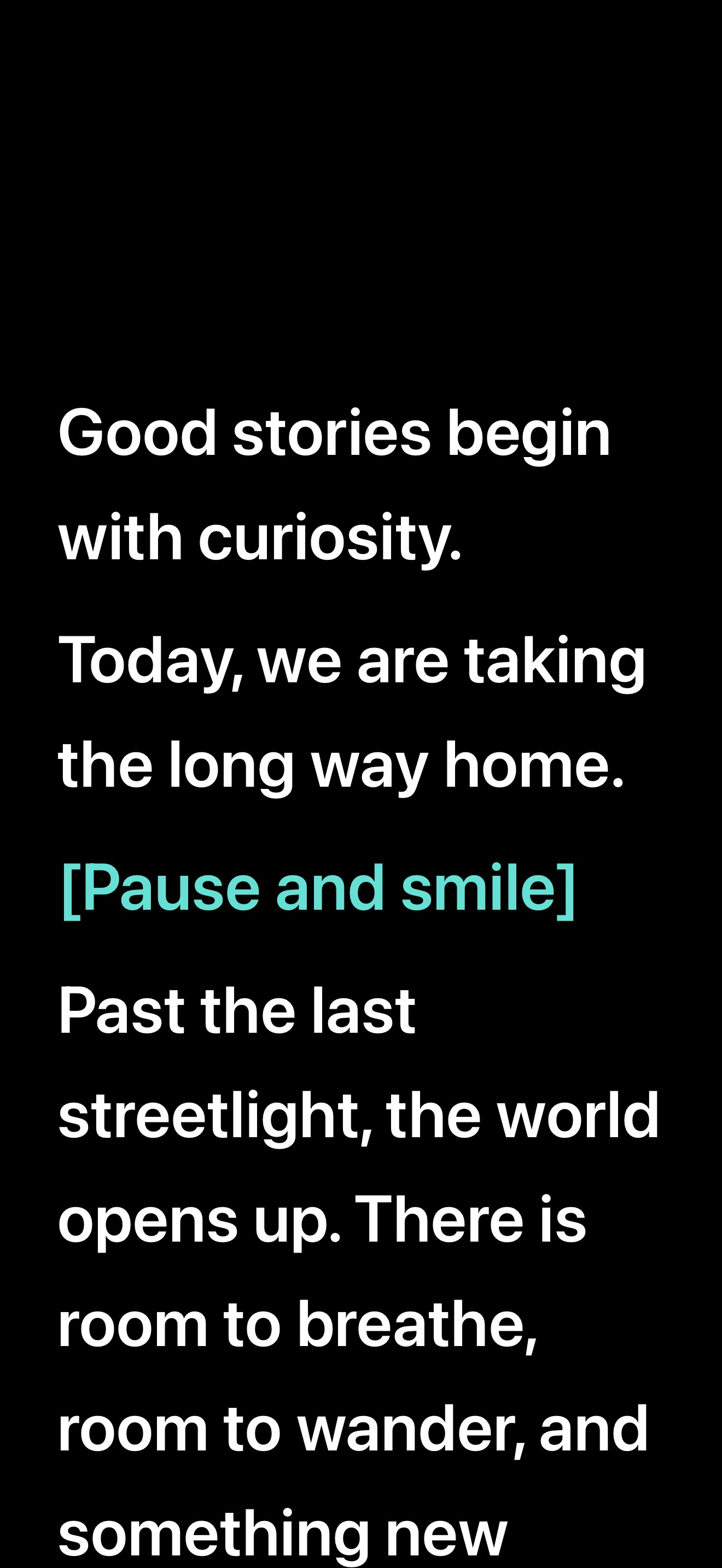
Just you and your script.
Big, clear text. Nothing in the way. Tap for controls or drag to find your place.
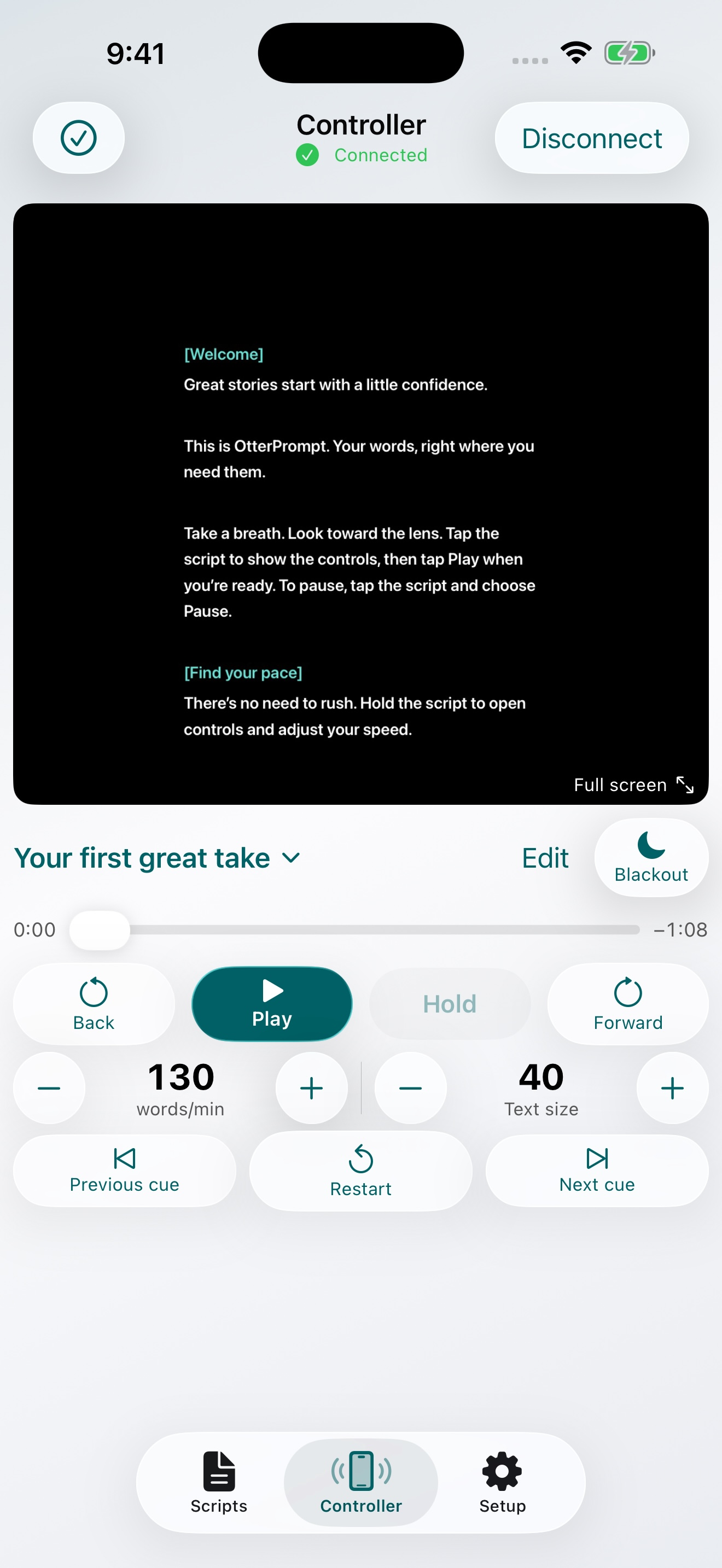
Keep the whole crew in sync.
See the Prompter’s view on your Controller. Adjust speed and text size, jump to a cue, or hold while your presenter catches up.
View iPad Controller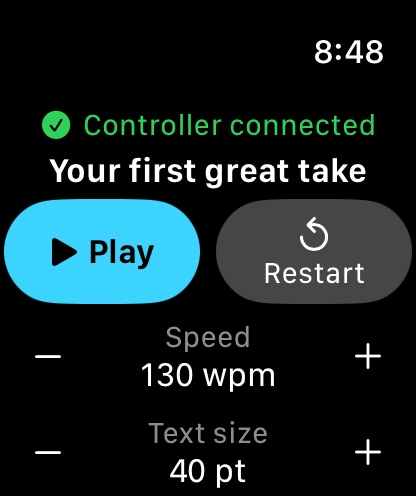
Your next take.
A tap away.
Start, pause, restart, and adjust speed or text size from Apple Watch. Your paired iPhone keeps it connected to your setup.
Set up your WatchYour next take.
Your choice.
One complete app for solo creators and video teams. Every plan includes the same prompting, Selfie recording, and Controller features.
- Lifetime One purchase
- $99.99 once
- Permanent access. No renewal charges.
- Annual 7-day free trial
- $49.99 / year after trial
- Full access while subscribed, billed yearly.
- Monthly 7-day free trial
- $9.99 / month after trial
- Full access while subscribed, billed monthly.
Coming to the App Store. Download free, then choose a purchase option in the app. The 7-day free trial is for eligible subscribers, once per Apple Account across Monthly and Annual. After the trial, your plan renews at the price above unless you cancel at least 24 hours before the trial ends. Subscriptions renew automatically until canceled in your Apple Account settings. Prices shown are in US dollars; Apple displays local pricing and trial eligibility before purchase. Lifetime is a one-time purchase without a trial. Hardware is separate.
Film yourself with Selfie mode
- Open Scripts, choose your script, and tap Selfie mode. Allow Camera and Microphone access.
- Frame yourself in the live camera preview. The compact script window sits near the lens. In Selfie settings, adjust text size, width, and visible lines. Set Camera is at to the edge with your front camera, especially on an older iPad. The placement follows that physical edge when you rotate.
- Tap Record. Your configured countdown appears, then filming and scrolling begin. Tap Play/Pause or the script to pause just the text. Drag to find your place and use Slower/Faster to adjust the pace.
- Tap Stop to save. Open the review button to watch your take, share it, or Save to Photos. Restart while recording saves the current take before starting another.
Portrait records vertical video; landscape records horizontal video. The preview is mirrored for familiar framing, while the saved video is unmirrored. Script text and controls are never burned into your recording. Optional 4K uses a supported camera format when available.
Selfie window settings are separate from your regular Prompter. Record a short test to check framing and microphone sound before an important take. If access was denied, use Open Settings on the camera message to check Camera and Microphone permissions.
Start your first take
Open Scripts, choose a script, and tap Prompt this script. Tap the text to reveal controls, then tap Play. Drag the text to pause and find your place. Exit returns to Scripts. Tap or resume playback to hide the controls.
Connect another iPhone
- Keep Wi-Fi and Bluetooth enabled in system Settings and both devices nearby. Open OtterPrompt on both devices.
- On the device showing the script, open Scripts → Connect devices → Prompter.
- On the other device, choose Controller, then select your Prompter.
- Compare the numbers shown on the two screens, then tap Allow on the Prompter.
- Choose your script from the Controller and start the take. Keep both apps open.
Allow Local Network access when prompted. If a device does not appear, confirm that permission in system Settings, bring the devices closer, and reopen Connect devices. VPNs, managed networks, and hotspot configurations can affect discovery; try a direct nearby setup or another local network. You do not pair the iPhones manually in Bluetooth settings. Game controllers are paired using Apple's system pairing flow.
Connect Apple Watch
Use the iPhone already paired with your Watch. In Apple's Watch app, install OtterPrompt if it appears under Available Apps. Open OtterPrompt on Watch and iPhone. In Scripts → Watch Controller, tap Test Watch connection, choose where the script will appear, and select a script. To control an iPad, connect this iPhone to it as a Controller first. Keep OtterPrompt open on the paired iPhone during use.
Import and protect scripts
Use Import scripts to paste text or browse Files. Choose a document through Apple's Files picker. Use Script storage to choose a shared folder for syncing. Offline files must already be downloaded to the device.
Use Drafts & recovery for unfinished drafts and Recently Deleted, and Version history inside a saved script. Export important scripts separately as a backup. Sync is not a substitute for keeping a backup before a production.
Format speaker notes
Put a note in square brackets on its own line: [Pause and smile]. Speaker notes use their own color and become cue points. Remove blank lines closes gaps that can interrupt natural reading; it asks before changing the script and supports undo.
Recordings, voice, and writing
Check permissions in system Settings if a feature cannot start. Record a short test and listen to it before an important take. Voice follow requires supported on-device recognition; Steady and Manual remain available. Writing assistance needs a compatible Apple Intelligence device running iOS 26 with its model downloaded. Captions ask before Apple Speech processing, which may use the internet.
If recording is interrupted, open Setup → Recordings & captions and inspect the available take or recovery notice. Always check the exported movie before deleting the original.
Purchases
OtterPrompt will offer a $99.99 Lifetime unlock, a $49.99 annual subscription, or a $9.99 monthly subscription through Apple in-app purchases. Each option unlocks the same app features. Eligible subscribers get a 7-day free trial on Monthly or Annual, once per Apple Account across both plans. Cancel at least 24 hours before the trial ends to avoid the first charge. After the trial, subscriptions renew at the selected plan’s price until canceled; Lifetime does not expire and has no trial. Local prices may differ.
Restore your purchase on compatible devices using the same Apple Account. Use Setup → Purchases & subscriptions to restore access or manage a subscription. If you switch to Lifetime, cancel your existing subscription separately to prevent another renewal charge. Your scripts and recordings remain on your device if a subscription ends.
Apple handles billing and refund requests. Manage subscriptions · Terms of use · Privacy policy
Still need a hand?
We’re here to help. Include your device models, iOS or watchOS versions, the OtterPrompt version shown in Setup, and what happened.
Please leave confidential scripts and recordings out of your first message.
A quick, automatic check helps protect our support inbox from spam.